
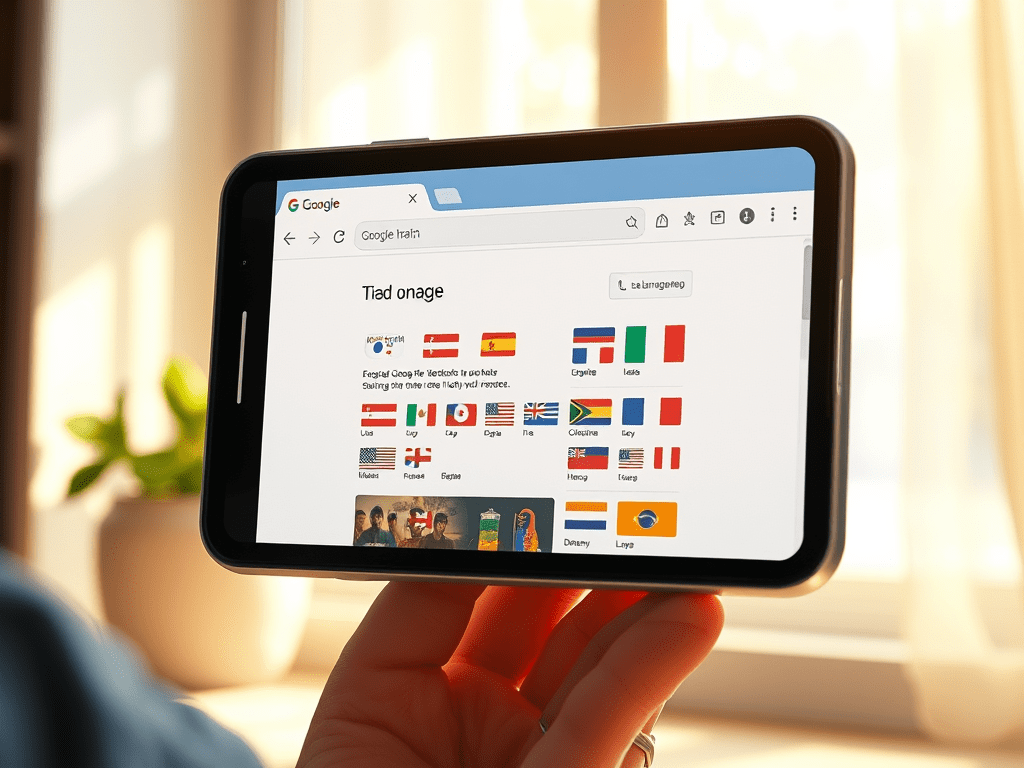
Making Our Content Accessible for Everyone
To activate the language translation function in Google Chrome on your mobile device, follow these steps:
For Android:
- Open Chrome: Launch the Chrome app on your Android device.
- Go to a Page: Navigate to the webpage you want to translate.
- Translate Notification: At the top of the screen, you should see a translation notification. Tap the language you want to translate the page to.
- Change Default Language (Optional): Go to Settings > More languages. Select the language you want and tap Always translate pages in [language] to automatically translate pages in that language.
For iPhone/iPad:
- Open Chrome: Launch the Chrome app on your device.
- Go to a Page: Navigate to the webpage you want to translate.
- Translate Option: At the top of the screen, select the language you want to translate the page to.
- Change Default Language (Optional): Go to Settings > More languages. Select the language you want and tap Always translate pages in [language] to automatically translate pages in that language.
You can use other browser apps with language translation capabilities to read in your preferred language, making it easier to understand foreign content. These tools provide translations along with features like context suggestions and voice output, enhancing your reading experience and ensuring that important information is not lost.
 Ignite and Achieve